Profile Objects
To share your data with others, you need to add categories to your profile
-
Navigate to the Raytio homepage, in the top right of your screen, press on the Data Provider dropdown, then on Profile

-
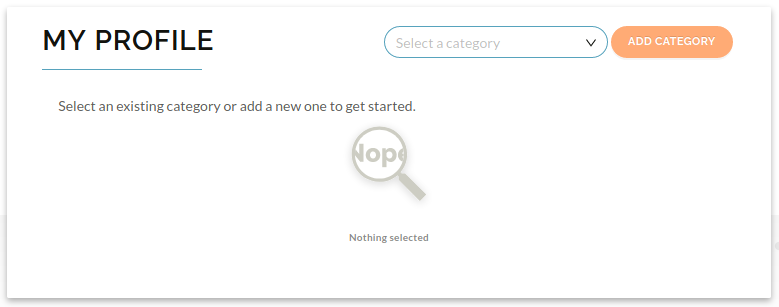
To add a category to your profile, press the Add Category button
-
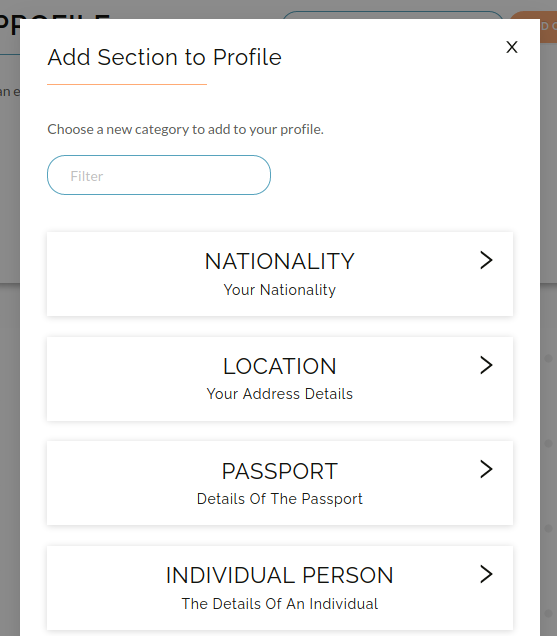
On the list that pops up, choose which category you would like to add, and press on the Arrow
-
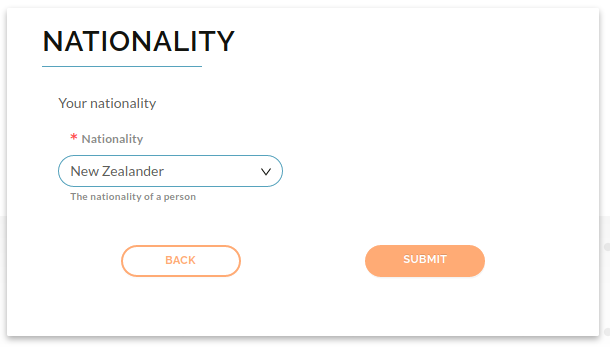
Depending on which category you have selected, fill out the box with the information requested, and then click Submit
-
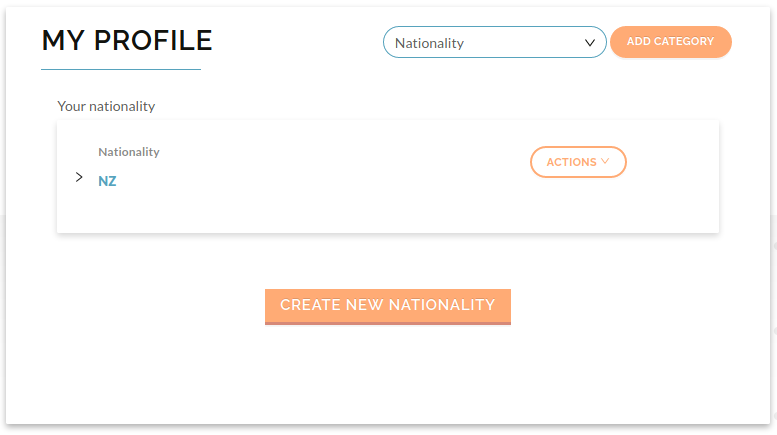
You should see your newly added category selected with the information you just filled out
-
When you have added multiple categories, you may switch between them with the dropdown box in the top right corner
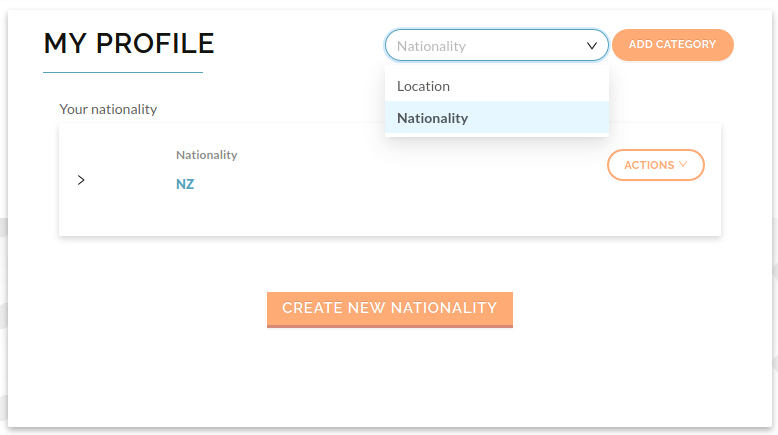
-
You can edit the categories on your profile, navigate to the category that you would like to edit, press on the Actions dropdown box and then edit
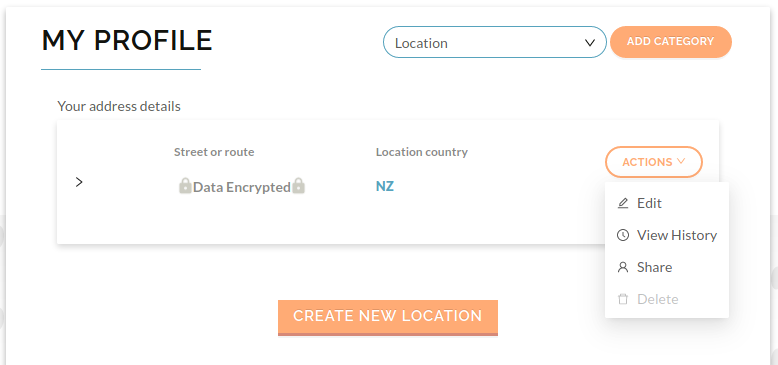
-
You can view the history of the categories on you profile, navigate to the category that you would like to view the history of, press on the Actions dropdown box and then Edit
If you would like to update the permission of your profile object, refer Update Profile Object Permissions