File Manager
You can use Raytio to store and share files
- Navigate to the Raytio homepage and press Files in the navigation bar. To upload a file, press the Upload File button
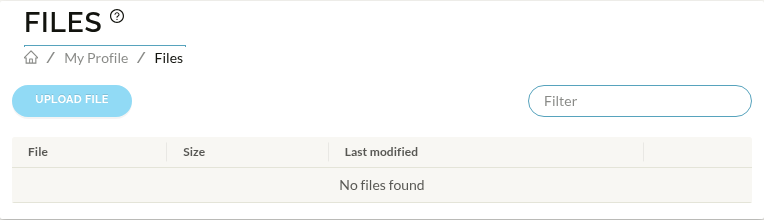
- Fill out the form, and upload the file by clicking the Click to Upload button, then click Submit
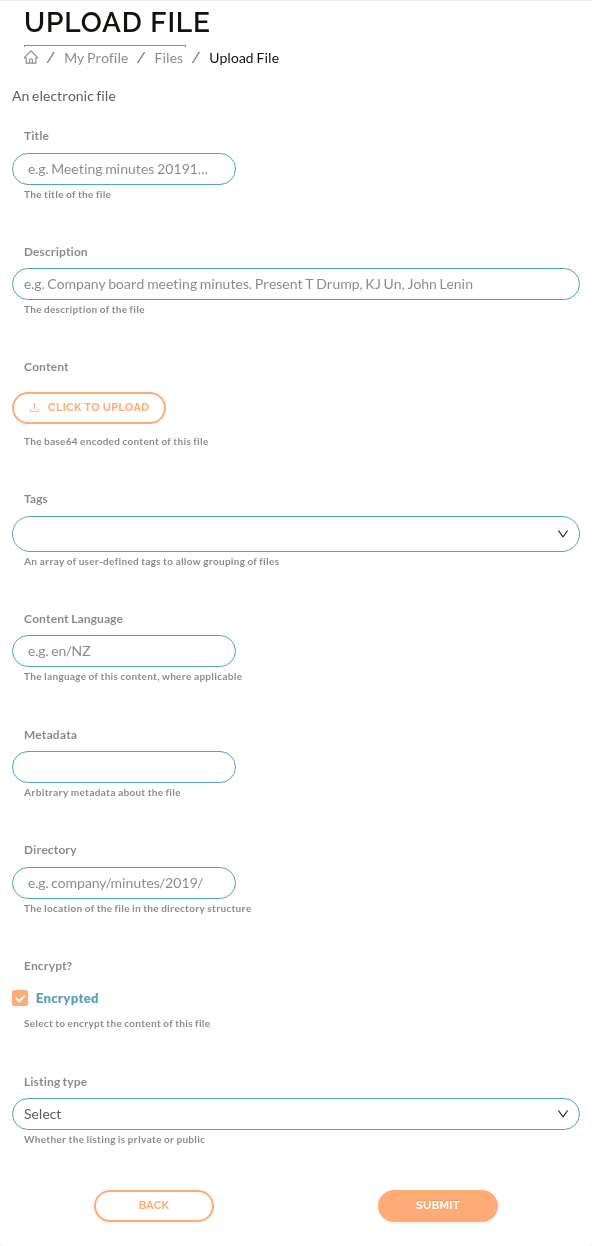
- You will be redirected back to the Files page, with your new file shown
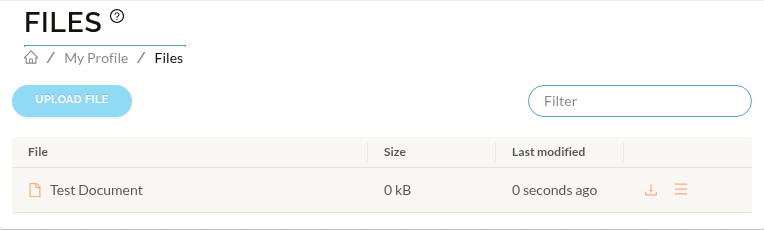
- To download a file that you have uploaded to Raytio, on the right side of the file you would like to download, press the Download button (the arrow pointing downwards into a box)

- To manage file sharing, on the right side of the file press the Actions menu (the three horizontal lines icon) and select Share

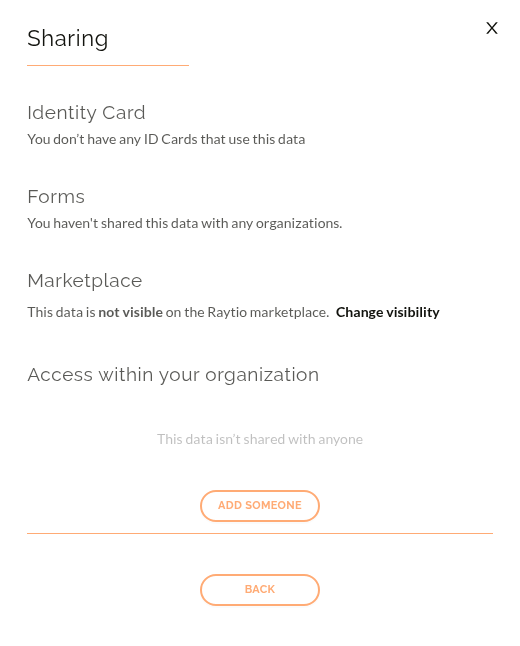
- In the Sharing dialog, select Manage Sharing to see who has access. Press Change visibility to update the file's visibility. There are three options:
- Public — anyone can view the file
- All Raytio Users — any authenticated Raytio user can view the file
- Private — only users you explicitly share with can access it
- To make the file publicly available, select Public, then press Save

- To make the file available to all Raytio users, select All Raytio Users, then press Save

- To share the file with specific people in your organization, press Add Someone on the Manage Sharing page, select who you would like to share with, then press Share